
Remote MySQL Access via SSH - Secure Connection Guide
Securing Remote MySQL Access with SSH Tunneling
By default, MySQL installations on web servers are often configured to accept connections only from local ports, a security measure designed to limit exposure. Directly opening access from your specific IP address is a potential security risk.
A more secure approach involves utilizing port-forwarding through an SSH tunnel. This method allows your MySQL client to connect to what appears to be your local machine, while the connection is actually routed through the secure tunnel to the remote server.
Establishing the SSH Tunnel
If you're using the command line ssh utility, the command to create the tunnel will resemble the following:
ssh -L 3306:localhost:3306 [email protected]
The command structure is: ssh -L <localport>hostname<remoteport> <username>@<servername>. In this instance, 'localhost' is specified as the hostname because we are establishing a direct connection to the remote MySQL server via SSH.
Expanding Tunneling Capabilities
This technique isn't limited to a single hop. You can chain SSH tunnels to connect through multiple servers if needed.
If MySQL is already running locally, you can designate a different local port for the forwarding process. Subsequently, configure your client tools to access MySQL on this alternative port.
Connecting with Your MySQL Client
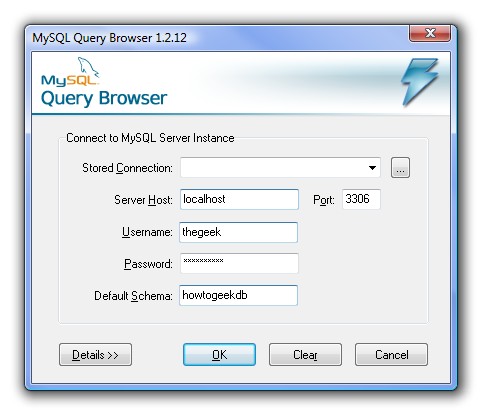
After the SSH tunnel is active, launch your MySQL client, such as MySQL Query Browser.
Enter the connection details for the remote server, but crucially, use localhost as the server host. Adjust the port number to match the local port you specified during the SSH tunnel creation.
Once familiar with this method, you may find it a preferable alternative to tools like phpMyAdmin or the command-line MySQL client.
- Security: Avoids exposing MySQL directly to the internet.
- Flexibility: Works with various SSH clients (command line, Putty, SecureCRT).
- Convenience: Provides a seamless connection experience.