
Private Browsing in Chrome: Beyond Incognito Mode

Google Chrome: Maintaining Privacy and Convenience
My preferred web browser varies depending on the task at hand, but I predominantly utilize Google Chrome. Its consistent simplicity, speed, and ongoing innovation – exemplified by features like Chrome Instant and the recent speak-to-search functionality in the Chrome beta – are highly appealing.
I previously highlighted some of my favored Chrome themes. Beyond aesthetics, Chrome offers a range of practical features designed to enhance the user experience.
The Benefits of Incognito Mode
A feature I particularly appreciate is Chrome's incognito mode. This mode prevents the browser from saving your browsing history and downloaded files.
Furthermore, cookies are automatically cleared upon exiting incognito mode, ensuring a genuinely private browsing session.
Balancing Privacy with User Experience
However, the absence of cookies necessitates re-logging into frequently visited websites and individually re-enabling desired extensions.
It may surprise you to learn that a method exists to enjoy private browsing within Google Chrome while simultaneously remaining logged into your accounts and retaining access to your extensions.
This allows for a seamless blend of privacy and convenience, eliminating the need for repetitive logins and extension activations.
Utilizing Incognito Mode: A Step-by-Step Guide
For those unfamiliar with accessing an incognito window, the process is quite straightforward. Begin by navigating to the upper-right corner of your Chrome browser and clicking the customization icon, often represented by a wrench or three vertical dots.
From the menu that appears, choose the option labeled New Incognito Window. This action will launch a new browser window, visually distinguished by a spy icon in the top-right corner.
Alternative Access Methods
A quicker method to initiate incognito mode involves utilizing keyboard shortcuts. On Windows PCs, press Ctrl+Shift+N simultaneously.
Mac users can achieve the same result by pressing ?+Shift+N. This bypasses the need to navigate through the browser menu.
Functionality Within Incognito Mode
While in incognito mode, browser extensions are temporarily disabled. However, rest assured that they remain installed and will be available once you exit incognito mode.
Changes made to your bookmarks or general browser settings during an incognito session will be saved. Therefore, your preferences are maintained even when browsing privately.
Although incognito mode offers a degree of privacy, it's important to note that it doesn't entirely conceal your online activity. If a more comprehensive level of privacy is desired, consider exploring additional options for preventing browsing history recording in your standard Chrome window.
Maintaining Privacy in Chrome Without Incognito Mode
For users who prefer a standard browsing experience but desire the functionality of history-free sessions without utilizing incognito mode, a simple configuration adjustment can be made.
This involves preventing Chrome from recording browsing activity to the history file. While it might initially appear complex, the process is surprisingly straightforward.
Disabling History Recording
The core principle revolves around instructing the browser to refrain from logging your visited websites. This effectively achieves a similar outcome to incognito mode, but within your regular Chrome window.
By modifying a specific setting, you can ensure that your browsing sessions remain unrecorded, offering a heightened level of privacy.
- Benefit: Enjoy privacy without switching to a separate incognito window.
- Simplicity: The configuration process is user-friendly and requires minimal technical expertise.
- Control: You maintain complete control over when history recording is active or disabled.
Essentially, you are telling Chrome to operate as if you are always in a private browsing session, but without the visual cues or separate window associated with incognito mode.
This method provides a seamless way to browse without leaving a trace, catering to users who prioritize privacy without wanting to disrupt their usual workflow.
Locating Your Chrome History File on a PC
For users operating with a Windows-based PC, accessing the Chrome history file involves navigating to a specific directory. The path to this file is: C:\Users\AppData\Local\Google\Chrome\User Data\Default\History.
Modifying History File Permissions
To effectively work with the history file, it may be necessary to adjust its properties. Specifically, you might need to disable the Read Only attribute.
This can be achieved by right-clicking on the History file and selecting properties from the context menu.
Steps to Disable Read Only Attribute
The process of disabling the Read Only attribute is straightforward. Locate the corresponding checkbox within the file's properties window and ensure it is unchecked.
Confirm your changes by clicking Apply and then OK. This will allow for modifications to be made to the Chrome history file.
Successfully altering the file permissions is crucial for certain troubleshooting or data recovery scenarios involving your Chrome browsing history.
Maintaining Privacy: Accessing Chrome History on a Mac
For Mac users operating on OS X, a method exists to prevent Chrome from recording browsing history. This involves navigating to a specific file within the Finder application.
Locating the Chrome History File
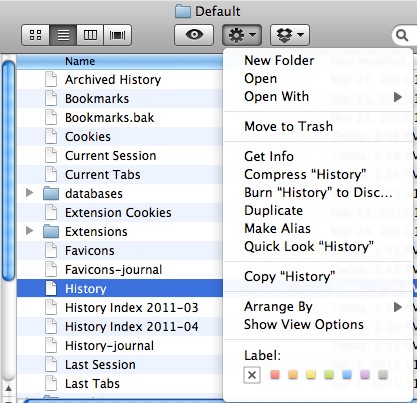
Begin by opening a Finder window. Then, proceed to the following directory:
[your root name]/Library/Application Support/Google/Chrome/Default/History
This directory contains the file that stores your Chrome browsing history.
Modifying File Permissions
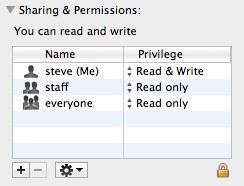
Once the file is located, access its Get Info window. Within this window, navigate to the Sharing & Permissions section.
Change the permission setting for your user account to Read Only. This prevents Chrome from writing new data to the history file.
Browsing Without History Recording
After altering the file permissions, Chrome will no longer record your browsing activity. Any websites visited from this point forward will not be saved in the browser's history.
It’s important to note that this method effectively disables history recording until the file permissions are reverted.
Re-enabling History Recording
To resume normal browsing with history recording, simply follow the same steps to access the file’s Get Info window and Sharing & Permissions.
Change the permission setting back to its original state, allowing write access. Chrome will then begin recording your browsing history once more.
Are you considering employing this technique for private browsing sessions? Do you have further questions or suggestions regarding Chrome browser functionality?
Feel free to share your thoughts and ideas in the comments below for a collaborative discussion!