
Slow Katapult Search? Troubleshooting & Fixes
Addressing Performance Issues with Katapult
For users who frequently utilize keyboard launchers, such as Katapult, a noticeable slowdown can sometimes occur. This issue often arises unexpectedly.
The root cause is frequently a large music library managed within Amarok. Katapult, by default, initiates a search of this library even after the entry of a single character.
Configuring Katapult to Improve Speed
To resolve this, begin by accessing the Katapult configuration settings. If you are having difficulty locating the settings, attempt to open them directly.
You will then be presented with two potential solutions.
Option 1: Disabling the Amarok Catalog
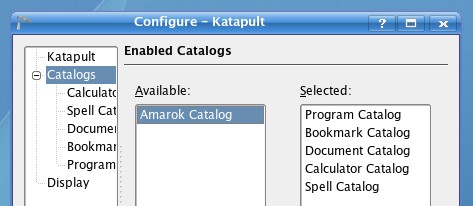
The simplest approach is to completely disable the Amarok Catalog. This can be achieved by navigating to the Catalogs section and removing Amarok Catalog from the active list.
Option 2: Adjusting Search Character Threshold
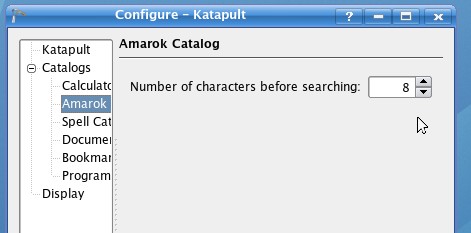
Alternatively, you can modify the number of characters that must be typed before a search of the Amarok library is triggered. Adjusting this setting will likely result in a significant improvement in Katapult’s responsiveness.
 I personally opted to disable the Amarok Catalog entirely, as I rarely need to search my music collection through Katapult. However, the optimal choice depends on your individual workflow and preferences.
Ultimately, either of these methods will help restore Katapult to its optimal performance level, ensuring a swift and efficient experience when using this keyboard launcher.