
Cancel Apple Music Subscription - Easy Guide
Apple Music Subscription Cancellation Guide
Apple Music was introduced with considerable promotion and anticipation. Initial assessments have been largely favorable, and the complimentary three-month trial period serves as a compelling incentive.
However, a time may come when you determine the service is no longer a fit and wish to discontinue the paid subscription.
Update: The cancellation procedure has been revised. The following details outline how to terminate any application subscription on your iPhone or iPad.
Understanding Apple Music
If you are unfamiliar with Apple Music or are undecided about subscribing, a comprehensive overview is available for your review.
Registering for Apple Music is straightforward. With the latest iteration of iTunes, released on June 30th, a subscription can be activated within minutes.
Subscription Auto-Renewal
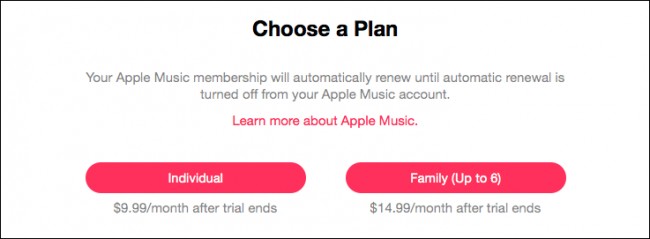
Upon enrollment, your subscription will automatically renew on a monthly basis. This will continue unless you proactively cancel it prior to the commencement of the subsequent billing period.
To avoid unwanted charges, it’s important to understand the cancellation process.
How to Cancel Your Subscription
Here's a breakdown of the steps involved in cancelling your Apple Music subscription:
- The process has been updated for recent iOS and iPadOS versions.
- You can manage all your app subscriptions through your device settings.
- Cancelling before the billing date prevents further charges.
For detailed instructions, refer to our guide on How to Cancel App Subscriptions on iPhone or iPad.
Remember to cancel well in advance of your renewal date to ensure uninterrupted access until the end of your current billing cycle.
 Managing iTunes Subscriptions on Desktop Computers
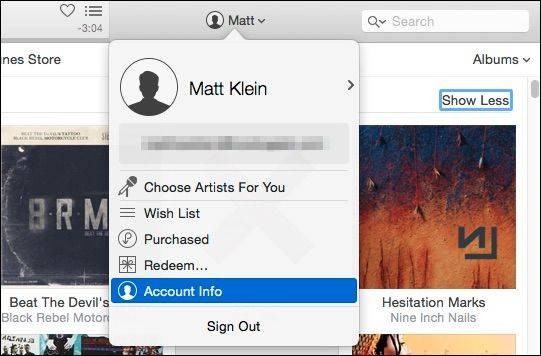
To terminate your Apple Music subscription, or any other subscription with automatic renewal, when utilizing iTunes on a desktop, begin by selecting your account located at the top of the iTunes window.
Following this, click on the "Account Info" option to proceed.
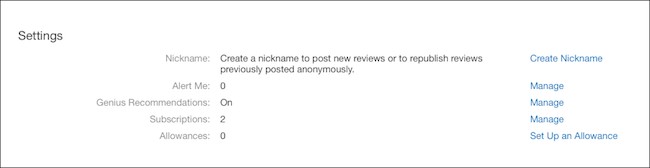
Your Apple ID password will be required to gain access to your Account Info. Upon reaching your account details page, navigate to the Settings section and select "Manage" adjacent to the Subscriptions listing.
A comprehensive list of your current and past subscriptions will then be displayed. Select "Edit" next to the specific Apple Music membership you wish to modify.
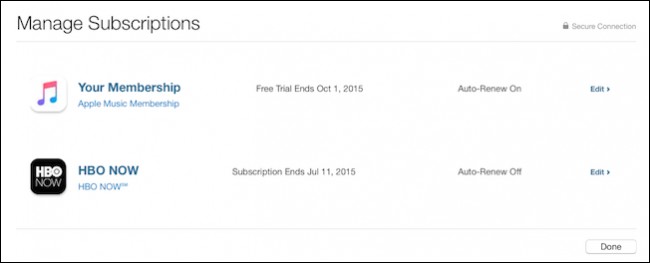
Available renewal options will be presented for review, allowing for potential adjustments. For instance, a switch to a Family plan at a cost of $14.99 monthly is possible.
However, to cancel the Apple Music subscription, simply click "Off" next to the Automatic Renewal setting.
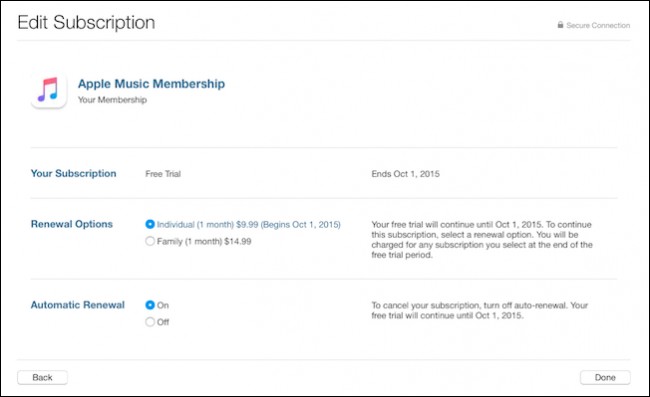
Confirm your decision by clicking "Done". Your subscription will then be canceled upon the expiration of any active free trial period, and no further charges will be applied.
Managing Subscriptions on iOS Devices
To cancel a subscription on an iOS device, such as an iPhone or iPad, begin by opening the Settings application. Then, select "iTunes & App Store" and tap on your designated Apple ID.
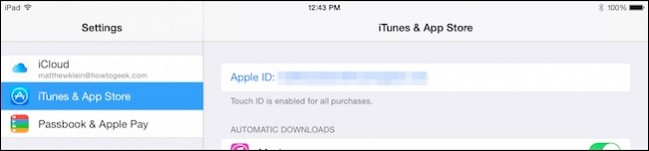
A pop-up window will appear; within it, choose "View Apple ID". You will then be prompted to enter your password to gain access to your account details.
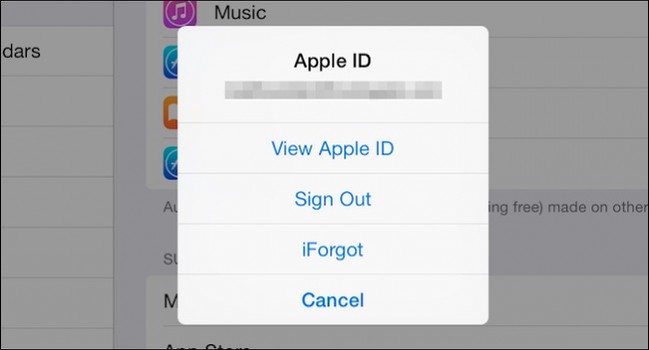
Locate the "Subscriptions" section and click on "Manage".
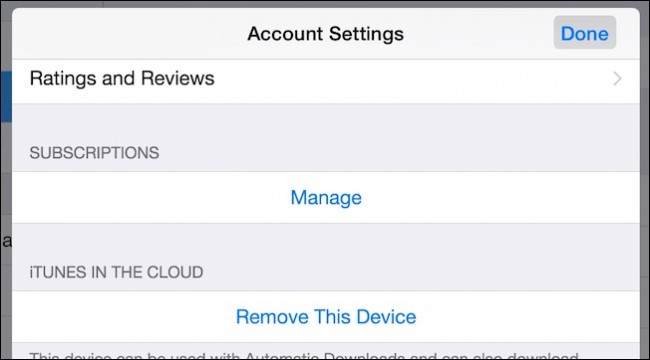
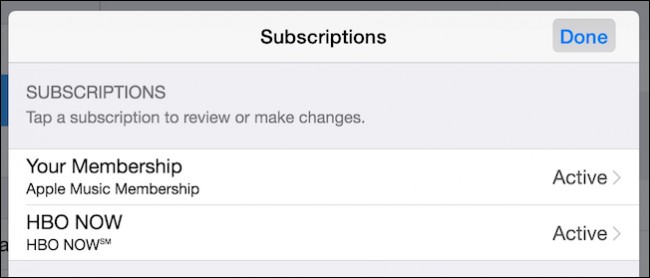
A list of your active subscriptions, along with their current statuses, will be displayed. Select the specific subscription you wish to terminate.
You will be presented with the subscription’s details and options for modifying renewal settings. To cancel, toggle the "Automatic Renewal" option to the "Off" position.
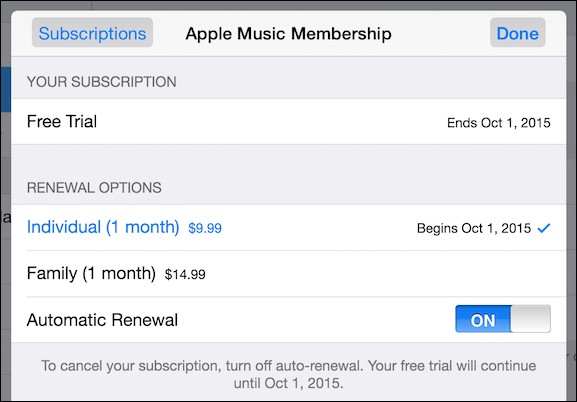
Upon completion, tap "Done" to exit the settings. You will no longer be charged for the subscription (such as Apple Music) following the conclusion of any active free trial period.
An individual’s preference for Apple Music is often determined by their existing loyalty to other streaming platforms. Ownership of an Apple device also plays a significant role.
Android users may experience a delay in accessing the application on their devices. Consequently, initiating a free trial at present might prove unproductive for those who prefer mobile streaming.
However, if you have chosen to explore the service, enjoy the complimentary three-month period. Remember that cancellation is possible at any time using the previously outlined steps. We invite you to share your thoughts and questions within our discussion forum.