Disable Autocorrect in Windows 10 - A Step-by-Step Guide
Understanding Autocorrect in Windows 10
Autocorrect functionality often evokes mixed reactions across different operating systems. Within Windows 10, its operation mirrors that of other platforms, automatically correcting recognized misspellings using its built-in dictionary.
Words not found within the dictionary are typically indicated by a red underline.
Variable Functionality Across Devices
The practical value of Autocorrect in Windows 10 is significantly influenced by the type of device being utilized. Despite being presented as a system-wide feature, its availability isn't universal.
It functions within certain universal apps, particularly native applications like Microsoft Edge and widely used platforms such as Facebook.
However, its presence in other applications is contingent upon developers choosing to implement the Windows Spell Checking API.
Generally, Autocorrect offers limited support for traditional desktop applications.
Potential Conflicts and Alternatives
Furthermore, Windows 10's Autocorrect can sometimes create conflicts with other spellchecking applications or services you may have installed.
Examples of such tools include Spell Check Anywhere and Grammarly.
Device-Specific Usefulness
Autocorrect tends to be more beneficial on Windows 10 phones and tablets.
Its utility is often diminished on desktop and laptop computers.
Enabling and Disabling Autocorrect
Autocorrect is activated by default on newly installed Windows 10 systems.
Fortunately, disabling it is a straightforward process.
Here's a quick summary of its key characteristics:
- Automatic Correction: Replaces misspelled words from its dictionary.
- Spell Check Indication: Underlines unrecognized words in red.
- App Dependency: Functionality relies on app developer implementation.
- Potential Conflicts: May interfere with third-party spellcheckers.
Deactivating Autocorrect and Customizing Typing Settings
To access the Settings application, a user can initiate it by pressing the Windows key in conjunction with the 'I' key.
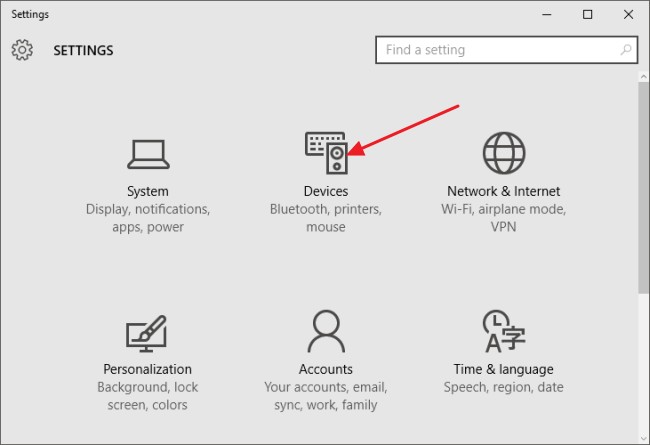
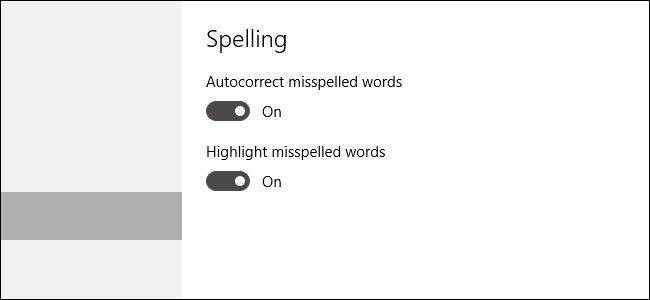
Within the Settings app, navigate to the 'Devices' section. Subsequently, within the 'Devices' window, select the 'Typing' category located on the left-hand side. Disabling Autocorrect misspelled words will deactivate the automatic correction feature.
Furthermore, the option to disable Highlight misspelled words is available, which removes the red, squiggly underlines indicating potential misspellings. For users not utilizing a touchscreen, these represent the sole available options.
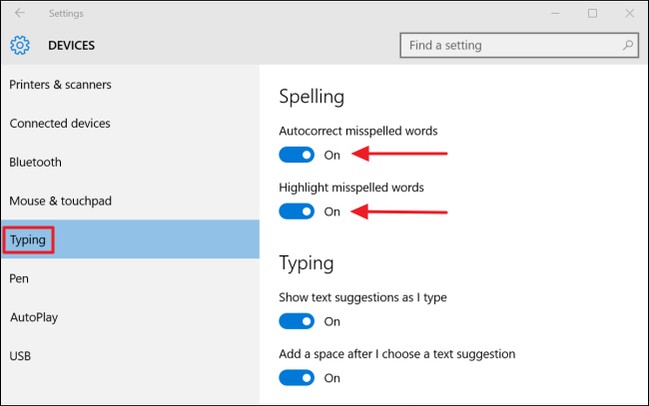
If a touchscreen is in use, additional correction features can be disabled. These include the display of text suggestions during typing and the automatic insertion of a period following a double space.
For the implemented changes to be fully reflected, it may be necessary to close and restart any currently running applications that utilize autocorrect functionality. This ensures the new settings are applied correctly.