
Ubuntu 14.04: Install a Mac OS X Dock
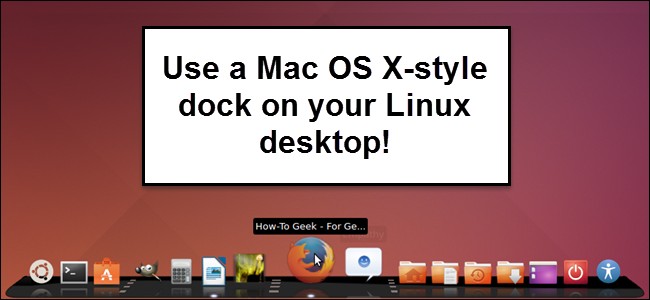
Customizing Your Linux Desktop with Cairo-Dock
If you’ve transitioned from macOS to Linux and find yourself missing the familiar launcher experience, or simply desire an alternative to the Unity Launcher on your Linux system, Cairo-Dock offers a highly customizable solution. This dock can be readily added to your Linux desktop environment.
Installation Process
Cairo-Dock is conveniently available through the Ubuntu Software Center. To access the Software Center, locate and click the orange suitcase icon present on the Unity Launcher.
Within the Software Center window, type “cairo” into the Search box located in the upper-right corner. As you type, a list of software options matching your input will dynamically appear.
Select “Cairo-Dock” from the displayed list and then click the “Install” button to begin the installation process.
An authentication dialog box will appear, prompting you to enter your account password. Input your password in the “Password” field and click “Authenticate.”
The installation progress will be visually displayed above the “Install” button. Allow the process to complete.
Upon successful installation, the “Install” button will transform into a “Remove” button, providing the option to uninstall the application if needed. Close the Ubuntu Software Center by clicking the “X” button in the upper-left corner of the window.
An icon representing Cairo-Dock will now be added to the Unity Launcher. Initiate Cairo-Dock by clicking this newly added icon.
Initial Configuration
A dialog box will appear, inquiring whether you wish to utilize OpenGL when running Cairo Dock. Enabling this option leverages hardware acceleration for enhanced visual effects. However, compatibility depends on your graphics card. It’s recommended to leave the “Remember this choice” check box unchecked, allowing you to adjust this setting later if necessary.
Select “Yes” to enable OpenGL in Cairo Dock, or “No” to proceed without it.
A welcome message will be displayed. Click on this message to dismiss it.
Before fully utilizing Cairo-Dock, a system restart is required. Click the power button located on the right side of the dock.
From the popup menu, select “Restart.”
A confirmation dialog box will appear, verifying your intention to restart the computer. Click the check mark to proceed with the restart.
Customization Options
After rebooting and launching Cairo-Dock, you can begin tailoring the dock to your preferences. Right-click anywhere on the dock, select “Cairo-Dock” from the context menu, and then choose “Configure” from the submenu.
The “Cairo-Dock configuration” dialog box will open, with the “Configuration” tab active. The “Behavior” sub-tab allows you to modify settings related to the dock’s screen position, visibility of docks, and Taskbar behavior.
To customize the visual appearance, click the “Appearance” sub-tab. Here, you can select a theme for the icons and adjust the view for both the main dock and any sub-docks.
The “Shortkeys” sub-tab enables you to define shortcuts for various actions. Clicking a shortcut in the list will display a prompt to enter a new key combination. Select “Cancel” if you wish to retain the default shortcut.
To adjust settings for individual items on each dock, click the “Current items” tab. Select an item in the left pane…
…to access and modify its specific settings in the right pane.
The “Add-ons” tab allows you to enable or disable various add-ons that extend Cairo-Dock’s functionality. The right pane provides a description of the currently selected add-on.
To change the overall theme of the dock, click the “Themes” tab. A list of available themes will be displayed, including those bundled with Cairo-Dock and the option to load custom themes.
Close the “Cairo-Dock configuration” dialog box by clicking the “X” button in the upper-left corner.
Utilizing Workspaces
Cairo-Dock integrates with Ubuntu’s Workspaces feature, providing easy access to multiple virtual desktops. By default, the workspaces tool icon is positioned to the right of the main dock. Click a desired workspace on the icon to switch between them.
Workspace names can be customized. Right-click on the workspace icon and select “Rename this workspace” from the popup menu. A dialog box will appear, allowing you to enter a new name.
New workspaces can also be added. Right-click on any existing workspace icon and select “Add a workspace” from the popup menu.
Note that Cairo-Dock typically adds workspaces in pairs. Rename these new workspaces as desired.
The workspaces tool can be moved onto the main dock. Right-click on the workspaces tool icon, select “Switcher” from the popup menu, and then choose “Return to the dock” from the submenu.
Quitting Cairo-Dock
To close Cairo-Dock and remove it from your desktop, right-click anywhere on the dock, select “Cairo-Dock” from the popup menu, and then choose “Quit” from the submenu.
Confirm your decision to quit Cairo-Dock by clicking the check mark on the confirmation dialog box.
For further information on utilizing and customizing Cairo-Dock, refer to the First Steps webpage or the complete tutorial available on the Cairo-Dock website.