
Manage Startup Applications in Ubuntu 14.04 - A Guide
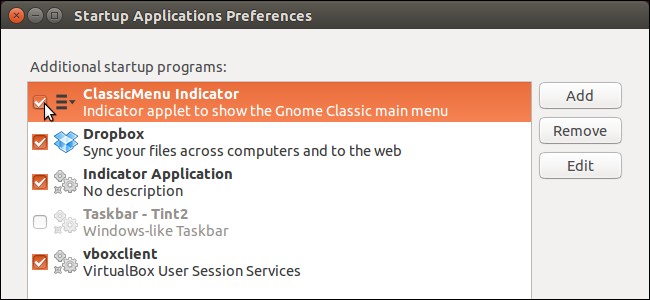
Managing Startup Applications in Ubuntu
If your Ubuntu system has a large number of installed applications, you might experience a slower boot process. This is often due to applications that are configured to launch automatically during startup, consuming system resources as Ubuntu initializes.
Fortunately, Ubuntu provides tools to control which applications begin at boot and to introduce delays in their execution. Staggering the startup of applications can optimize resource allocation and improve overall system responsiveness.
Important Note: When instructed to enter text, do not include the quotation marks, unless explicitly stated.
Accessing the Startup Applications Tool
Begin by clicking the Search button located at the top of the Unity bar.
Type “startup applications” into the Search box. As you type, matching items will appear below. Select the Startup Applications icon to launch the tool.
Disabling Startup Programs
To prevent an application from automatically launching upon Ubuntu startup, simply uncheck the corresponding box next to its name within the Additional startup programs list. Removing the checkmark ensures the program will not start automatically.
Implementing Startup Delays
To introduce a delay before a startup program begins running, select the program itself (not the checkbox) from the Additional startup programs list and then click the Edit button.
Within the Edit Startup Program dialog box, locate the Command field. Prepend “sleep XX;” to the existing command. Replace “XX” with the desired number of seconds to delay the program’s execution after boot.
For example, if the original command is “dropbox start –I”, it would be modified to “sleep 20; dropbox start –I”. This will cause Dropbox to launch 20 seconds after the system has fully booted.
Completing the Configuration
Once you have made the necessary adjustments, click Close to exit the Startup Applications Preferences dialog box.
Further Resources
We have also provided guidance on managing startup applications in other operating systems, including instructions on how to disable startup programs in both Windows 7 and Windows 8.