Remove Connect in Apple Music: A Step-by-Step Guide

Removing the Connect Tab from Apple Music
If you enjoy using Apple Music, you might find the Connect feature disruptive to your browsing experience. It can often occupy valuable space on artist pages.
Fortunately, eliminating the Connect tab is a straightforward process. It involves adjusting a few settings directly on your iPhone or iPad, provided your device operates on iOS 8.0 or a later version.
How to Hide the Connect Feature
The process to remove Connect is simple and doesn't require any complex technical knowledge. It's a user preference setting easily modified within the Music app.
Here’s how to disable the Connect feed:
- Open the Music application on your iOS device.
- Navigate to the “For You” tab.
- Scroll down to the bottom of the “For You” screen.
- Toggle off the “Show Connect Posts” option.
By switching this setting to the “off” position, the Connect tab will no longer be visible when viewing artists within the Apple Music app.
Restoring the Connect Feature
Should you wish to re-enable the Connect feed at any point, the process is equally simple.
Just follow the same steps as above, but this time, toggle the “Show Connect Posts” option back to the “on” position. This will restore the Connect tab to its original location.
This adjustment allows you to customize your Apple Music experience, prioritizing the content you prefer to see while utilizing your device running iOS 8.0 or newer.
Managing and Disabling Connect in Apple Music
Apple Music’s Connect feed, designed to connect artists with listeners, is a prominent feature of the streaming service. However, some users find the influx of status updates detracts from their core music experience.
If you wish to continue using Apple Music but eliminate the Connect functionality, the process begins within your device’s Settings application.
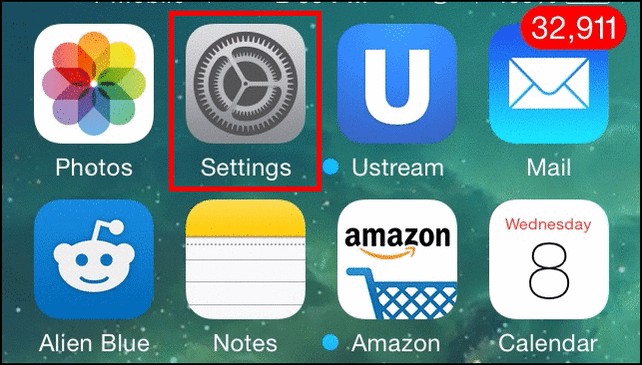
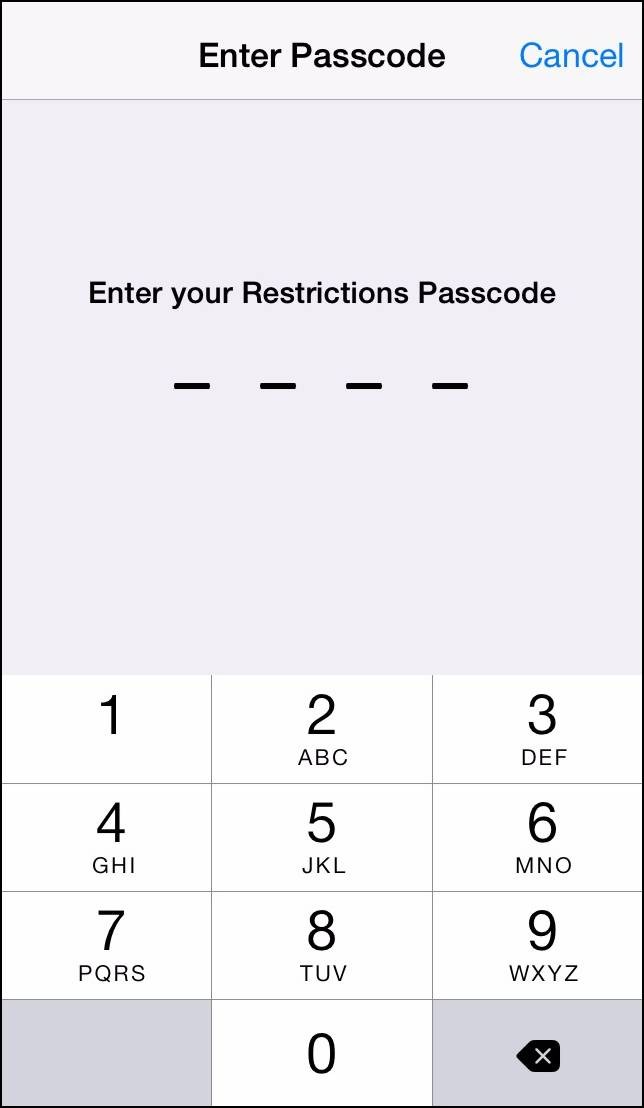
Navigate to the “General” section within Settings, and then locate the “Restrictions” option.
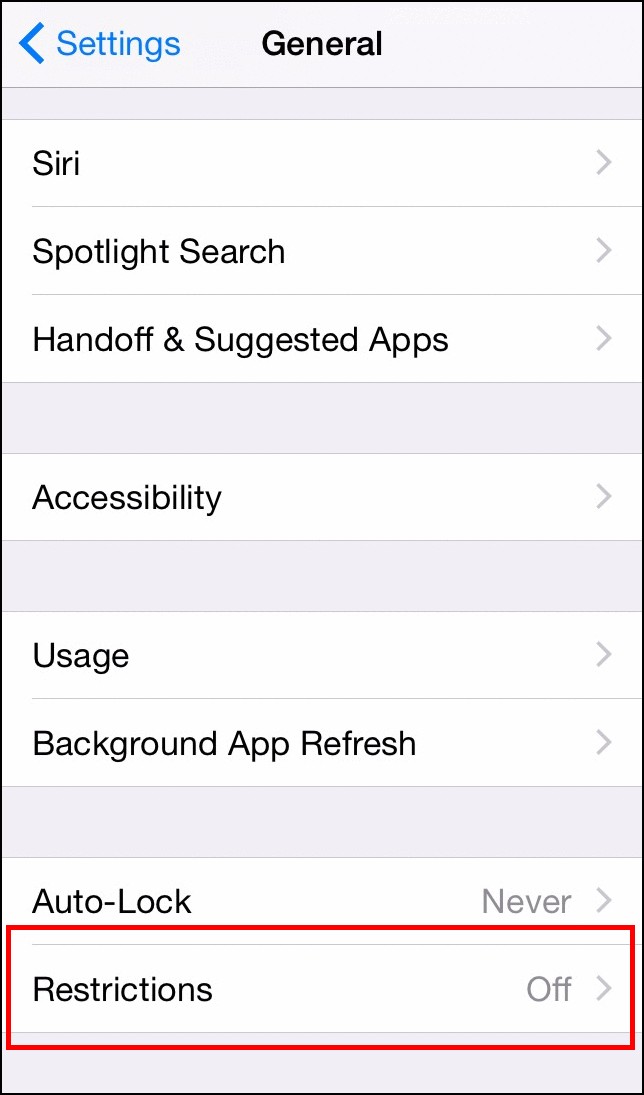
Should this be your first time utilizing Restrictions, a 4-digit PIN will be required for activation.
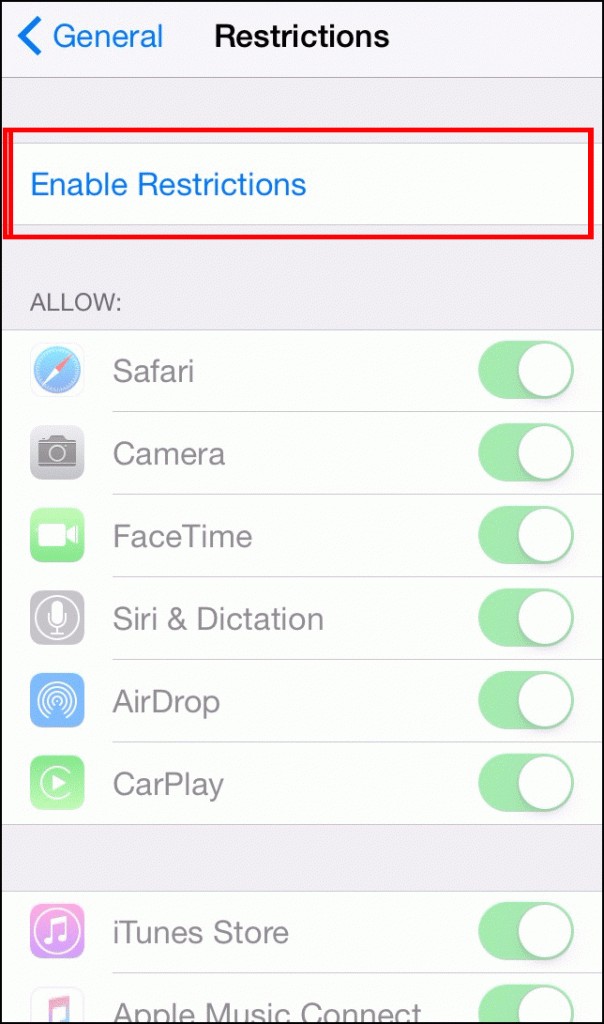
Within the Restrictions menu, scroll down until you find the “Apple Music Connect” toggle. Deactivate this toggle to disable the feature.
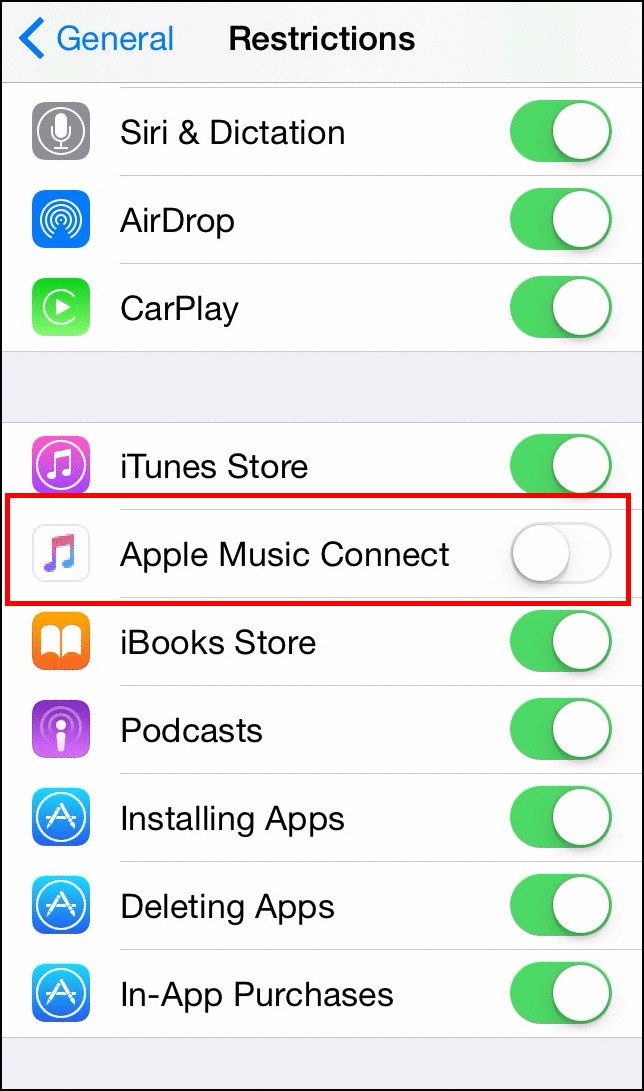
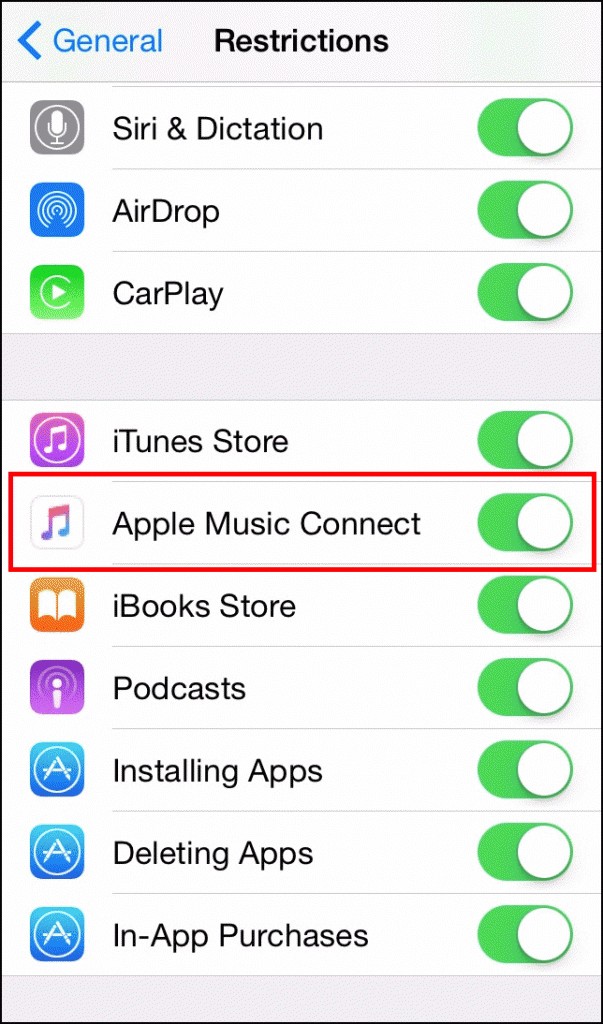
Following this adjustment, artist pages will no longer display Connect updates. Instead, users will see the artist’s discography, popular songs, and recent releases.
Completely Deactivate Apple Music
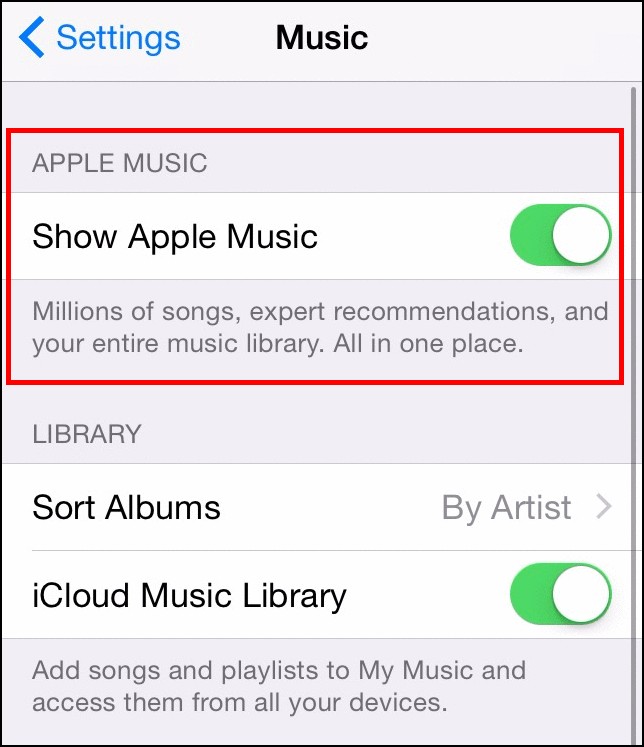
Alternatively, should you have no desire to utilize the Apple Music functionality, the application icon can be hidden from view.
Begin by navigating to the Settings application. Select the "Music" option, and then disable the "Apple Music" toggle.
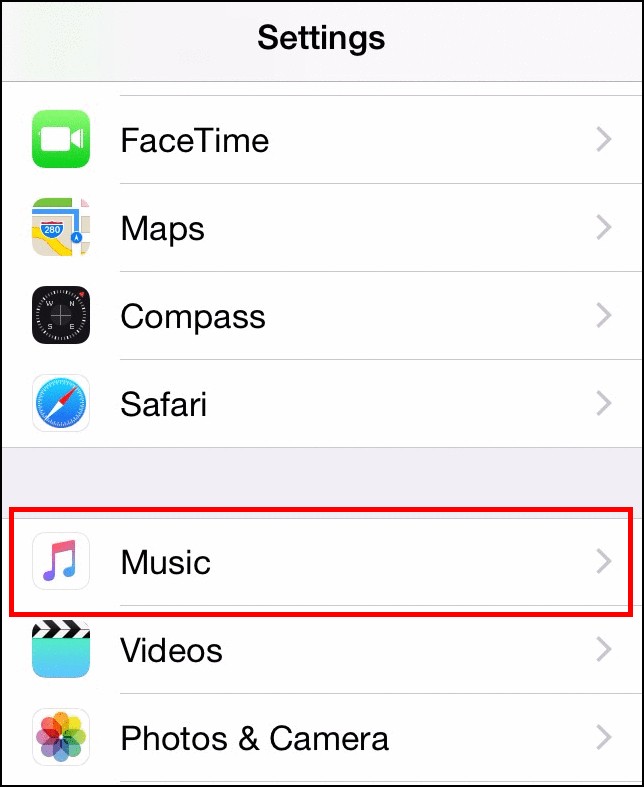
With this setting turned off, the Music application will only display locally stored songs or music purchased and downloaded via the iTunes Store.
While Connect offers valuable features, it isn't universally appealing. Fortunately, Apple provides the flexibility to opt-out of features you don't require, and the disabling process is straightforward for all users.
Image Source: Apple Music