Unlock Minecraft Map Difficulty - A Guide
Difficulty Locking in Minecraft 1.8 and Beyond
The 1.8 update for Minecraft brought with it a new characteristic for maps: the option to fix the game's difficulty level. This feature is intended to promote fair gameplay and discourage alterations to the intended experience.
However, players may find this locking mechanism restrictive if the difficulty is set to a level they don't prefer. This guide details how to both make the difficulty setting permanent and, conversely, how to unlock it.
Permanently Changing the Difficulty Setting
If you are a map creator and wish to enforce a specific difficulty, you can ensure it remains fixed for all players. This is achieved through a specific process.
- Open the Map Folder: Locate the folder containing your Minecraft map.
- Edit level.dat: Within this folder, find the file named "level.dat". This file stores crucial map data.
- Use an NBT Editor: You'll need a dedicated NBT (Named Binary Tag) editor to modify this file. Popular options include NBTExplorer.
- Navigate to Difficulty: Within the NBT editor, navigate to the following path:
Data -> Difficulty. - Set Difficulty Lock: Change the value of "DifficultyLocked" to
true. - Set Desired Difficulty: Also within
Data -> Difficulty, set the "Difficulty" value to your desired level (0 for Peaceful, 1 for Easy, 2 for Normal, 3 for Hard). - Save Changes: Save the modified "level.dat" file.
By following these steps, the map's difficulty will be permanently set to your chosen level, preventing players from changing it in-game.
Unlocking the Difficulty Setting
If you encounter a map with a locked difficulty that you wish to adjust, the process is similar, but involves changing a single value.
- Repeat Steps 1-4 from Above: Access the "level.dat" file using an NBT editor as described previously.
- Unlock Difficulty: Navigate to
Data -> Difficultyand change the value of "DifficultyLocked" tofalse. - Save Changes: Save the modified "level.dat" file.
Setting "DifficultyLocked" to false will allow players to change the difficulty setting within the game as normal.
It's important to note that modifying the "level.dat" file requires caution. Always back up your map before making any changes to avoid potential data loss.
Understanding the Minecraft Difficulty Lock
If you arrived at this guide through a search engine, you likely already understand the purpose of the difficulty lock and are seeking a way to remove it. For those unfamiliar, the difficulty lock is a function added to Minecraft in version 1.8. It allows players to permanently fix the difficulty level in a survival world where cheats are disabled.
This feature was implemented in response to player requests. It prevents accidental or intentional changes to the difficulty when facing challenging circumstances. For example, if a world is set to survival mode, without cheats enabled, and on hard difficulty, the player cannot quickly lower the difficulty to avoid danger.
The game initially starts with the difficulty unlocked. However, the option to lock it can be found within the game's settings. Access the settings menu by pressing the "ESC" key, then selecting the "Options" submenu.
The difficulty lock, highlighted in blue, is positioned adjacent to the difficulty selection. Activating this lock and confirming your selection prevents alteration of the world's difficulty through the in-game menu.
Changing the difficulty then requires either enabling cheats via an unconventional method or directly modifying the game files. We will now explore both of these approaches.
Modifying Difficulty Using the LAN Method
A workaround exists for altering the difficulty setting in Minecraft, even when locked, by utilizing the local area network (LAN) functionality. This method functions regardless of whether you are actually playing with others or have additional computers connected to your network.
Opening the game for LAN play grants access to both game mode adjustments – for example, switching from Survival to Creative – and the ability to activate or deactivate cheats.
Initial Difficulty Assessment
Let's first examine the current difficulty level within our test world.
 Currently, the game is set to "Hard" and this setting is locked. Attempts to modify the options through the in-game menus, including clicking the lock icon or the difficulty selection, are unsuccessful.
To circumvent this restriction, we will employ the open-to-LAN technique.
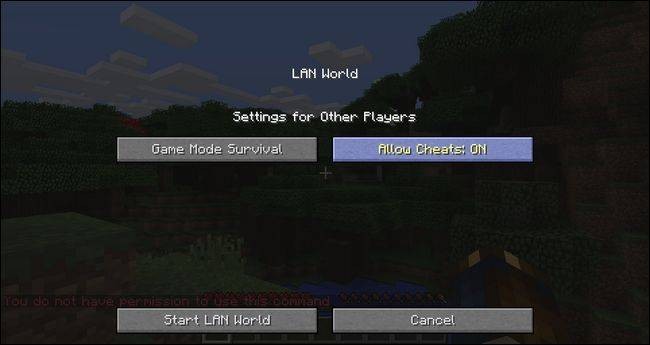 Enabling Cheats via LAN
Press the "ESC" key to access the settings menu. Select "Open to LAN," and then, within the LAN game options, ensure "Allow Cheats: ON" is selected, as illustrated in the image above.
With cheats enabled, console commands can be used to change the difficulty, bypassing the lock.
Return to the game and press the "T" key to open the chat box or console.
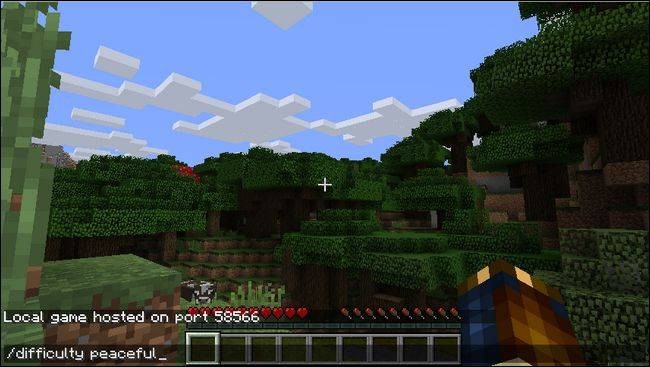 Adjusting Difficulty with Console Commands
Type the command "/difficulty peaceful" to lower the difficulty level. Alternatively, you can use "easy" or "hard," or their numerical equivalents: "0," "1," and "2," respectively.
Upon returning to the settings menu, you will observe that the difficulty level has been updated according to the console command you entered.
 Limitations and Persistence
It's important to note that the difficulty setting remains locked. Each time you restart the game, you must re-open it to LAN and enable cheats to make further adjustments.
However, if you only require a single change – for instance, reducing the difficulty to a more manageable level – this method is ideal and doesn't necessitate any external software. The alteration will be saved even after closing the game and disabling the LAN cheat mode.
To permanently unlock the difficulty setting, rather than simply adjusting it through console commands, a Minecraft level editor will be required.
Adjusting Minecraft Difficulty Settings
For players seeking to modify the difficulty level, a straightforward method exists that doesn't require additional software. However, for those who prefer frequent adjustments without utilizing console commands, a more lasting solution is necessary.
Related: Changing Minecraft World Modes – Survival, Creative, and Hardcore.
To implement these permanent alterations to the difficulty lock, direct editing of the game file, specifically the level.dat, is required. Standard text editors are insufficient for this task, as Minecraft employs a unique formatting system called Named Binary Tag (NBT). Consequently, a specialized tool, familiar from a previous guide – How to Switch a Minecraft World from Survival to Creative to Hardcore – NBTExplorer, will be needed.
NBTExplorer is a freely available, cross-platform application designed for editing Minecraft’s NBT-based game files. Downloadable versions are provided for Windows, macOS, and Linux through the NBTExplorer GitHub page, or further information can be found on the official Minecraft forum thread.
Important Note: While this process is generally safe and poses a minimal risk of data corruption, it is always advisable to create a backup of your world data before proceeding with any edits. If you are unsure how to perform a backup, consult our dedicated guide on backing up Minecraft data.
Launch the application after downloading. It automatically searches for world data within your default Minecraft saves folder. If your save is located in a non-standard directory, use the File -> Open command to manually browse for and select the file.
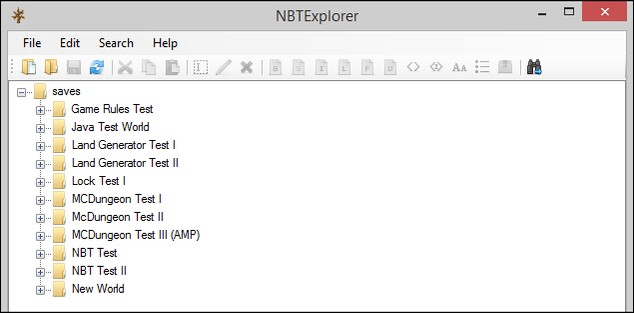
In our example, the test world is named "Lock Test I". To access the difficulty lock setting, expand the entry corresponding to the world you intend to modify, and then expand the subsequent "level.dat" entry, as illustrated in the image.
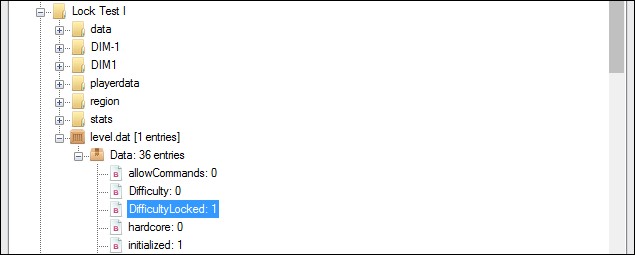
Within the extensive list of entries in the level.dat file, locate "DifficultyLocked." Its default value is "0," indicating an unlocked state. This value changes to "1" when the difficulty is locked within the game.
To permanently unlock the difficulty setting, simply double-click the "DifficultyLocked" entry and change the value from "1" to "0". Save your changes by selecting File->Save (or using the CTRL+S keyboard shortcut, or its equivalent on your operating system). Now, reload the game to verify the difficulty setting.

The difficulty selection is now unlocked, allowing you to adjust the game's difficulty without needing console commands or further file editing.
Do you have a Minecraft question, no matter how simple or complex? Email us at [email protected], and we will endeavor to provide an answer.
Related Posts

Connect Xbox 360 Wireless Controller to PC - Easy Guide

Wearing Glasses with Oculus Rift & HTC Vive - Is it Possible?
Use PS4 DualShock 4 Controller on Mac - Setup & Guide
Play Xbox 360 Games on Xbox One - Compatibility Guide

Cloud Gaming: Is It the Future of Gaming?