Windows 10 Notification Center: A How-To Guide

A Revamped Notification Experience in Windows 10
Historically, the notification system within the Windows operating system has been considered inadequate. However, Windows 10 introduces a significantly improved notification center, offering users a more functional and reliable experience.
Effective notifications are crucial for any operating system, mirroring their importance in platforms like Android, iOS, and OS X as a key component of user and application interaction. Windows 8 featured “toast notifications” – small, rectangular alerts appearing from the screen’s top-right. These proved unpopular, and a major drawback was their ephemeral nature; once dismissed, they were irrecoverable.
Introducing the Action Center
To remedy this, Microsoft developed a new notification center, termed the “Action Center”. This center preserves a history of your notifications, ensuring you can review missed alerts by simply opening the center.
To access the Action Center, select the corresponding icon, as illustrated below.
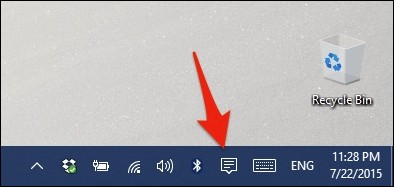 (Please note that the icon will illuminate white when unread notifications are present.)
The Action Center displays a complete record of your past notifications. These can be expanded for review or cleared individually, or all at once by clicking "Clear all".
 Configuring the Action Center and Notifications
The bottom of the Action Center features four configurable settings, collectively known as "Actions". These can be customized within the system Settings.
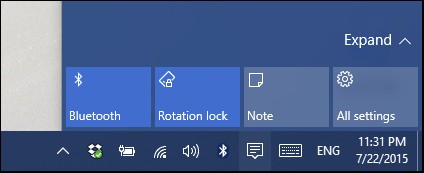 To adjust notifications and the Action Center, navigate to Settings, then select the "System" group, and finally click "Notifications and actions". The topmost options control the "Quick actions".
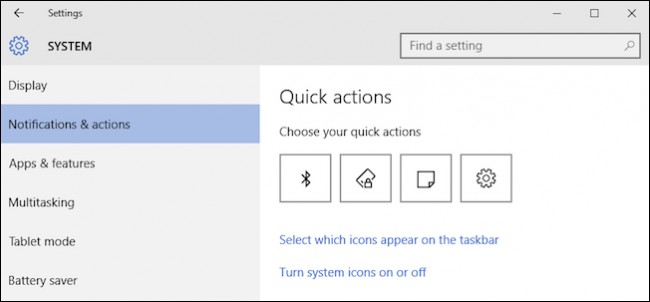 These represent the initial four actions visible upon opening the Action Center. You can modify these to prioritize the controls you utilize most frequently.
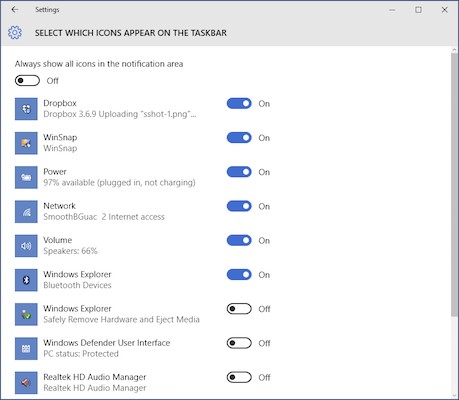
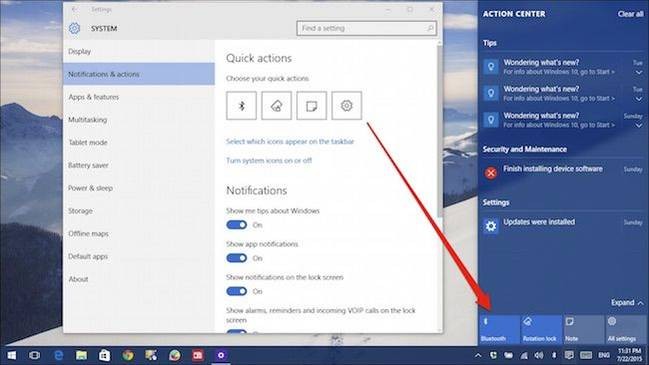 Selecting "Select which icons appear on the taskbar" allows you to manage the density of icons in the system tray, or disable them entirely.
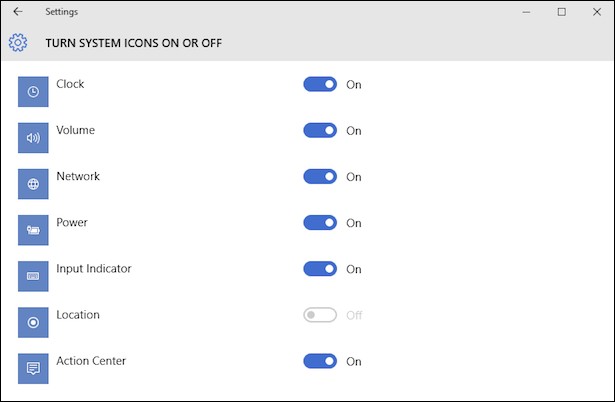
 Similar to previous Windows iterations, you retain the ability to toggle system icons on or off, including the clock, volume control, and the Action Center itself.
 Notification Control Options
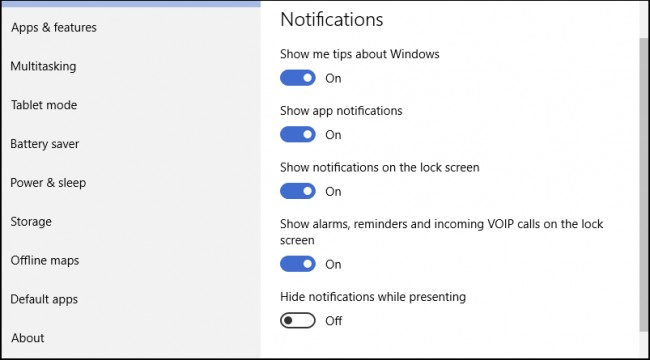
Windows 10 provides five distinct options for managing notifications. However, it's important to note that disabling notification sounds requires accessing the Sound control panel, as detailed in a previous article.
Disabling the first two options will likely suppress the majority of notifications. If you prefer a minimal notification experience, these are the settings to adjust.
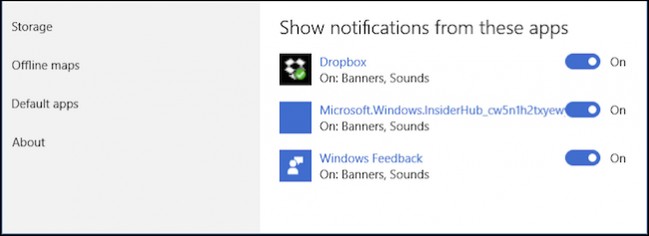
 Furthermore, you can selectively disable notifications from individual applications. This allows you to maintain notifications globally while silencing those from specific apps.
 Conclusion
The Action Center represents a significant enhancement to the Windows operating system. Users can now reliably track events and avoid missing crucial information.
The customization options for quick actions further improve usability, allowing you to prioritize frequently used controls. This eliminates the need to navigate through settings for common tasks.
We are interested in your feedback. What are your thoughts on Windows 10’s new Action Center? Does it effectively address past notification shortcomings, or would you like to see further improvements? Please share your opinions in our discussion forum.