
WinPatrol: Monitor Windows PC Changes - A How-To Guide
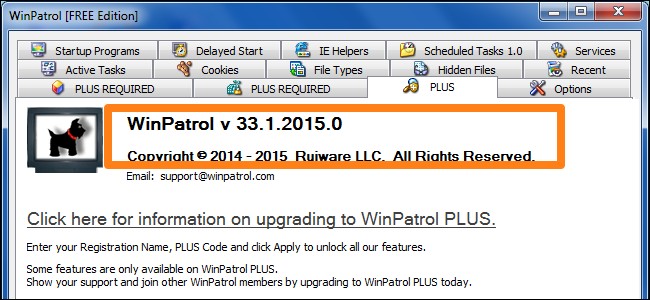
Understanding WinPatrol for PC Monitoring
WinPatrol serves as a valuable tool for safeguarding your computer, provided you understand how to leverage its capabilities to track alterations to your files and directories.
In contrast to utilizing FCV (FolderChangesView), a utility from Nirsoft Labs previously discussed, WinPatrol is designed for both novice and experienced users seeking comprehensive PC monitoring.
WinPatrol: Free vs. Paid Versions
Upon downloading WinPatrol, users are presented with a choice between a free and a paid version, a common practice for many online programs.
This article will concentrate on utilizing the free version to observe changes occurring on your system.
Installation and Launching WinPatrol
The initial step involves accessing WinPatrol’s download page to obtain the installation file.
This single file facilitates the installation of both the free and PLUS versions of the software.
After the program has been downloaded and installed, a simple double-click on its icon will initiate the application.
Exploring the WinPatrol Interface
The program’s main screen features 14 distinct tabs dedicated to various monitoring functions.
It’s important to note that three of these tabs are exclusively available to users of the PLUS version.
These tabs provide a detailed overview of system activity and potential security concerns.
The interface is designed to be intuitive, allowing users to quickly access the monitoring features they require.
Managing Startup Programs
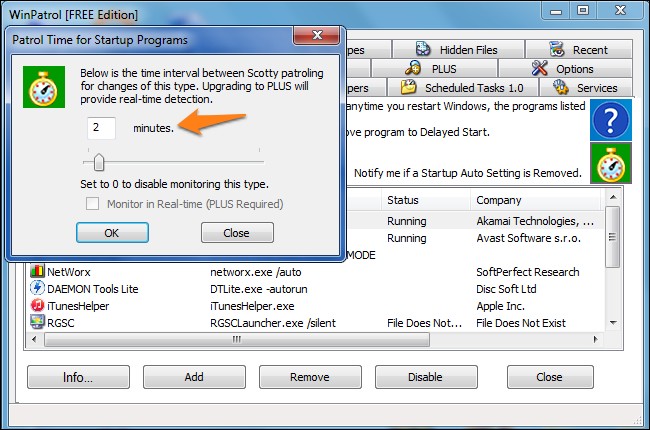
The "Startup Programs" section allows you to oversee the applications that launch upon system boot. Enabling or disabling individual items within the list is straightforward; simply select the desired entry and utilize the corresponding enable or disable control. A highlighted orange arrow indicates a checkbox that, when selected, instructs WinPatrol to actively monitor for alterations to the startup program configuration.
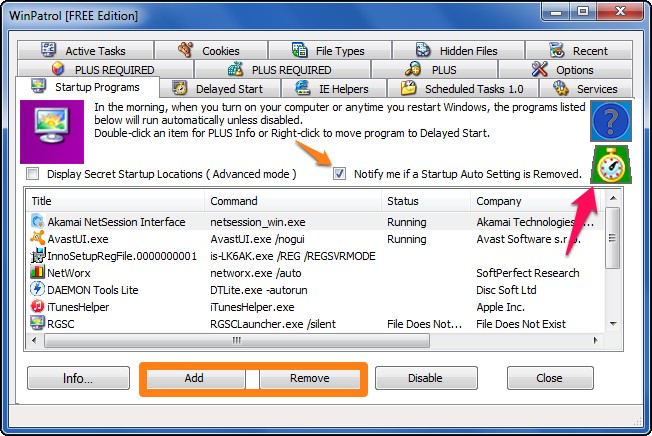
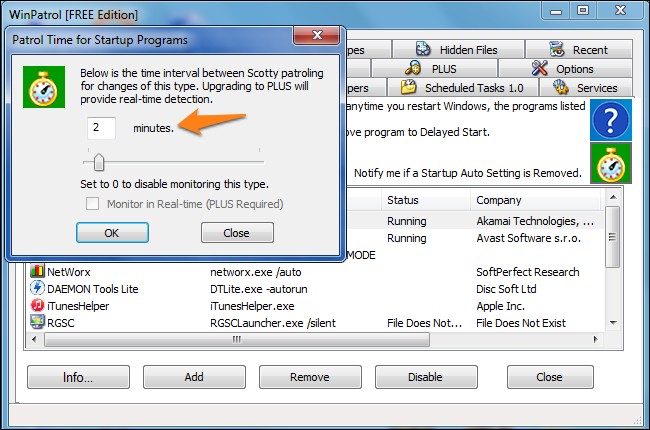
Adjusting the frequency of WinPatrol’s checks for modifications is possible by clicking the pink arrow, represented by a small clock icon. A two-minute interval, which is the default setting, is generally recommended for optimal performance.
WinPatrol will detect the removal of a startup entry, whether performed manually or as a consequence of program uninstallation. This detection will trigger a notification, similar to the example shown below.
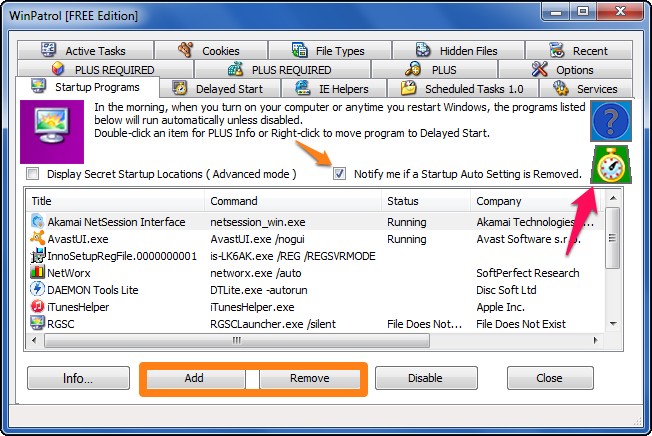
Upon the addition of a new entry, typically during software installation, WinPatrol will prompt you to authorize its permission to launch with Windows. You have the option to either approve or deny this change through the presented window. Further options include accessing the executable file’s folder or viewing its properties.
If you did not initiate the installation of a program or do not recognize the modification, declining the change is the most secure course of action. It’s important to note that this is merely a startup notification; it will not uninstall the program, but will prevent its automatic execution at system startup.
Scheduled Tasks 1.0
The Scheduled Tasks section within WinPatrol displays a list of tasks that are configured to execute automatically on your system. Selecting a specific task and clicking the “info” button reveals detailed information regarding its scheduling parameters.
The frequency with which WinPatrol scans for updates within this section can be adjusted. Simply utilize the stopwatch icon to modify the timer settings.
Understanding Task Scheduling
Regularly scheduled tasks are a common feature of Windows operating systems. They allow programs to run automatically at predetermined intervals or in response to specific events.
WinPatrol’s integration with Scheduled Tasks provides a means to monitor these automated processes for any unexpected or unauthorized modifications.
How to Utilize the Feature
- View Scheduled Tasks: A comprehensive list of all scheduled tasks is presented in the main window.
- Access Task Information: Detailed scheduling details can be accessed by selecting a task and pressing the “info” button.
- Adjust Scan Frequency: The interval at which WinPatrol checks for changes to scheduled tasks is configurable via the stopwatch icon.
By monitoring scheduled tasks, users can enhance their system’s security and maintain control over automated processes.
This feature is crucial for identifying potentially malicious software that attempts to establish persistence through scheduled execution.
Services
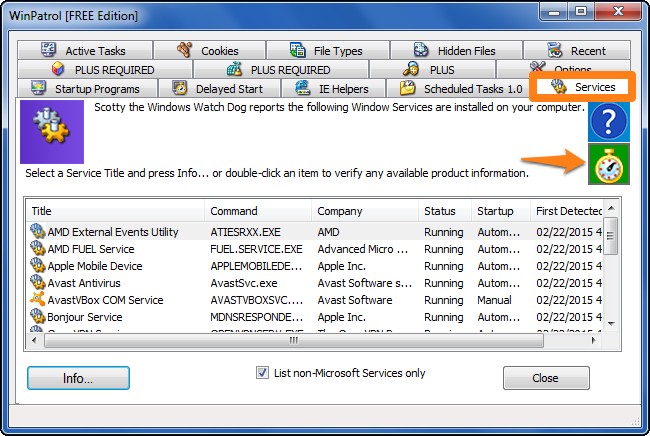
The Services tab within WinPatrol displays a comprehensive list of all services installed on your computer, indicating whether each is currently running or stopped.
Detailed information is also presented, including the service's startup configuration, the name of its executable file, and the vendor responsible for its development.
Adjusting Scan Frequency
The frequency with which WinPatrol monitors this section for alterations can be easily customized.
Simply click the stopwatch icon to modify the timer and adjust the interval at which checks are performed.
This allows you to balance system resource usage with the level of monitoring desired.
 Cookies
The Cookies tab allows users to locate and delete cookies containing specific text within their names. This functionality facilitates the filtering and removal of unwanted cookies stored on your system.
You have the ability to designate the browser to be searched and to specify whether cookies matching your criteria should be deleted. For instance, entering “facebook” in the designated field can block the chosen browser, such as Mozilla Firefox, from saving related cookies.
This feature provides granular control over your browser's cookie storage, enhancing your privacy and managing your online tracking preferences.
By utilizing this tool, you can effectively manage the data websites store on your computer, contributing to a more secure and personalized browsing experience.
Addressing Recent Malware Activity
Should you suspect a recent malware infection and require confirmation of complete removal, the “Recent” tab provides a valuable resource. It displays a comprehensive list of programs and processes that have been active on your system.
From this list, specific items can be selected and their associated tasks terminated. This allows for immediate disruption of potentially harmful activity.
Utilizing the "Delete on Reboot" Feature
To ensure thorough eradication, right-clicking on any listed item offers the option “Delete on Reboot.” Selecting this feature schedules the complete removal of the program’s traces during the next system startup.
This proactive step helps prevent reinfection and maintains system integrity. It’s a powerful tool for eliminating lingering malware components.
- Task Termination: Immediately stop suspicious processes.
- Reboot Deletion: Schedule complete program removal upon restart.
Employing both task killing and the “Delete on Reboot” function provides a robust approach to post-infection cleanup. It’s a key component of maintaining a secure computing environment.
Report Functionality within WinPatrol
The Options tab provides access to a variety of report functions, displayed on the right side of the interface. Time delays before specific actions are triggered can be adjusted by clicking the stopwatch icons located on the left side.
Accessing Repair and Restoration Tools
Selecting “Repair and Rest Tools” navigates you to a dedicated popup window. This screen presents a selection of additional tasks designed for system maintenance.
These tools empower users to revert unwanted modifications, perform targeted cleanup operations, and remove files previously deleted using WinPatrol.
The available functions are intended to provide granular control over system changes and facilitate efficient recovery from potential issues.
Specifically, these tools allow for the undoing of alterations, focused cleaning of program areas, and the permanent deletion of previously removed files.
Utilizing these features can help maintain system stability and optimize performance after implementing changes monitored by WinPatrol.
Final System Monitoring Considerations
As previously noted, WinPatrol’s core capability centers around the continuous surveillance of your computer for alterations. This functionality proves particularly valuable during software installations and while navigating potentially malicious websites known to distribute malware.
Upon identifying a system modification, the application will alert you with a notification, presenting a dialog box to confirm whether the change was authorized. It will then request your approval before proceeding with the operation.
Understanding WinPatrol's Alerts
The alerts generated by WinPatrol are designed to be informative, not disruptive. They provide details about the specific change detected, allowing you to make an informed decision.
Benefits of Proactive Monitoring
- Enhanced Security: Early detection of unauthorized changes can prevent malware from establishing itself.
- System Stability: Identifying unexpected modifications can help maintain system performance.
- User Control: You retain complete control over what changes are allowed on your system.
Regularly reviewing WinPatrol’s alerts is a crucial step in maintaining a secure and stable computing environment. It empowers users to proactively address potential threats and safeguard their systems.