
Clear Firefox History for a Single Site - How To
Removing Website History in Firefox
Occasionally, you may inadvertently navigate to a website you'd prefer not to revisit, and it becomes logged in your browser's history. This can be undesirable, and fortunately, removing such entries is a straightforward process. This guide details how to clear that “history problem”. It’s also a valuable technique when secretly planning a surprise for someone and forgetting to utilize Private Browsing mode.
Time to Begin the Cleanup Two distinct approaches can be employed to eliminate the website from your browser’s history. Choose the method that best suits your needs.
Method 1: Utilizing the History Library
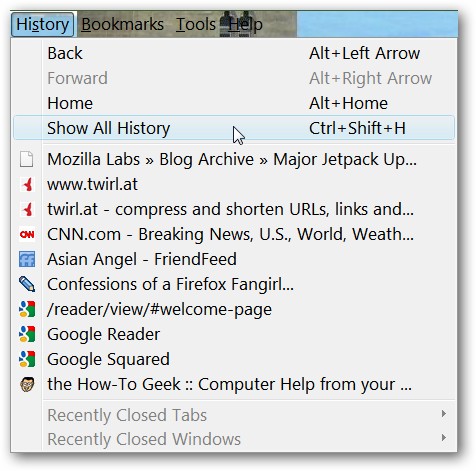
1. Access the Firefox Menu Bar, then click on "History" and select "Show All History". This action will launch the History Library Window.
Once the History Library Window is open, navigate to and click on "Today" located in the left-hand panel of the window.
Now, with today’s history displayed, it’s time to remove the unwanted website from your browser’s history. (In this example, we will use http://www.cnn.com/.) Right-click on the specific website entry and choose the “Forget About This Site” option.
As demonstrated, the website is effectively removed from your browsing history. All that remains is to close the History Library Window.
Method 2: Direct Removal from the Address Bar
2. Begin typing a portion of the website’s address, its title, or related keywords (such as “cnn”) into the address bar. This will display the website address in question.
Using your mouse or arrow keys, ensure the website’s address is highlighted, then press the “Delete” key on your keyboard.
The website’s complete address will briefly appear in the address bar and can then be deleted by backspacing or highlighting and removing it.
Retyping the keyword “cnn” into the address bar confirms that the website has been successfully erased from your browser’s history.
Conclusion
These methods provide quick and simple solutions for rectifying situations where you need to remove a website to avoid potential embarrassment at work or home. Maintaining your browsing privacy is now easily achievable. Happy browsing!