
Sneak Peek Videos While Working: 2 Clever Methods

The Appeal and Practicality of Concurrent Video Viewing
The enjoyment derived from watching videos is undeniable. Indeed, it’s often acknowledged as a captivating, and even habit-forming, pastime. However, daily responsibilities frequently necessitate attention elsewhere.
The question arises: is it possible to simultaneously engage with video content and fulfill other obligations? Could a non-intrusive method exist to maintain video visibility while continuing with primary tasks?
Addressing the Need for Multi-Tasking with Video
Consider scenarios where video reference is crucial during concurrent work in separate windows. These situations prompted a search for solutions enabling precisely this functionality.
Through investigation, two distinct approaches were identified that successfully facilitate watching videos alongside other computer activities.
These solutions allow for concurrent video viewing, enhancing productivity and offering a flexible approach to media consumption.
The core benefit lies in the ability to maintain video accessibility without disrupting workflow.
Ultimately, these tools address the common desire to integrate entertainment or reference material into a broader range of tasks.
YouTube Picture-In-Picture Extension [Currently Unavailable]
The “Picture-In-Picture For YouTube” Chrome extension enables viewing YouTube videos in a minimized, floating window on your desktop. Currently, functionality is limited to YouTube content that supports embedding.
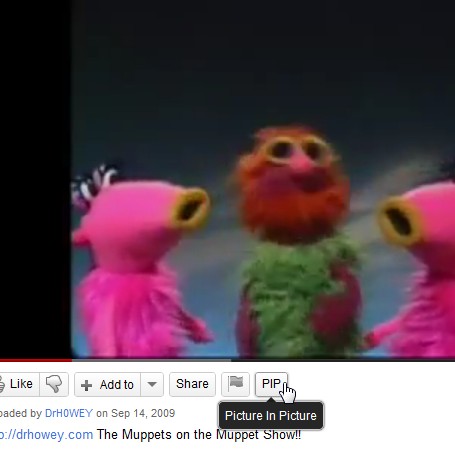
Upon installation, a new “PIP” button is integrated into the YouTube user interface.
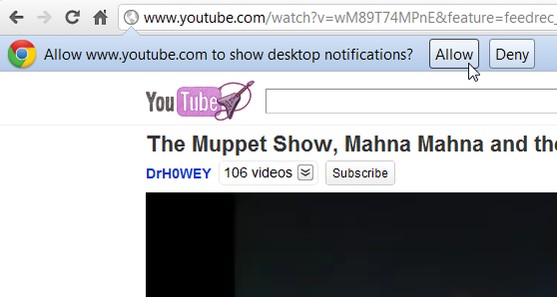
Utilizing Chrome’s notification capabilities, initial use requires granting permission for desktop notifications originating from YouTube.
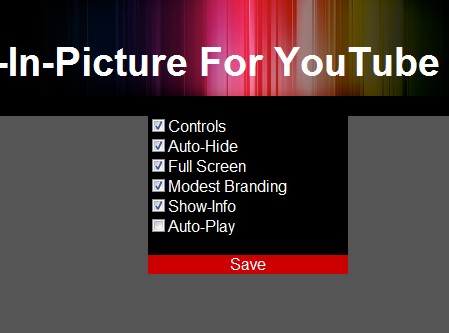
Following permission granting, the extension’s settings panel appears. This configuration is accessible at any time through Chrome’s extensions menu, though it initially presents itself upon first activation.
The settings offer limited customization. Users can opt to disable on-screen controls for an uninterrupted viewing experience when the mouse cursor is positioned over the window. Furthermore, auto-play can be enabled to initiate video playback immediately upon clicking the “PIP” button.
The resulting video window exhibits limited flexibility. Resizing or freely repositioning the window by dragging is not supported; it remains fixed to a corner of the screen. Despite this constraint, a satisfactory viewing experience is provided, allowing simultaneous use of other applications.
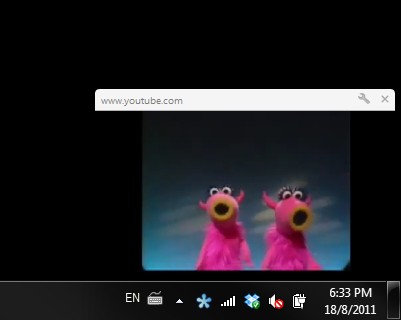
The video playback continues even when the original YouTube tab is closed or Chrome is minimized, although complete closure of the browser is not possible while the video is active.
The window’s corner placement can be adjusted by clicking the wrench icon and selecting “Choose position”. While all four corners are available, further customization of the window’s location is not permitted.
This functionality is beneficial for those seeking to consume YouTube content without disrupting their workflow. However, if the video itself is work-related, the fixed corner placement may prove less advantageous.
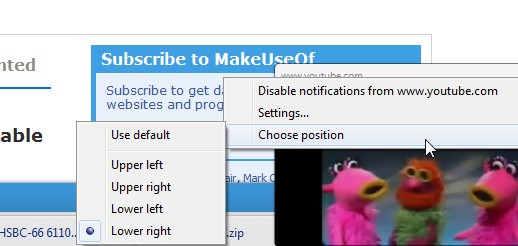
In conclusion, this extension proves to be a valuable tool, functioning with seamless integration. Video loading was rapid, and the viewing experience remained enjoyable even within the reduced window size.
OnTopReplica for Windows
OnTopReplica is a self-contained application available for download from its official website on CodePlex. The download is provided as a ZIP archive; extract its contents and then execute the EXE file. Upon launching, you will encounter the following interface:
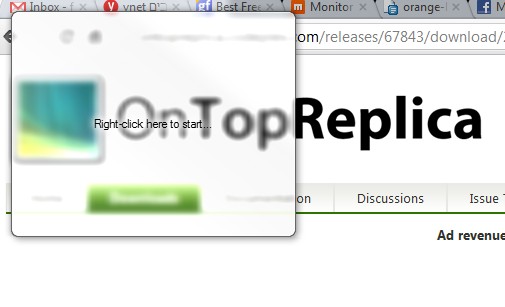
To begin, right-click within the application's window to access its menu. From there, select the window you wish to duplicate. Importantly, this doesn’t need to be a web browser window; any application window will suffice. In this example, a browser window displaying a video was chosen.
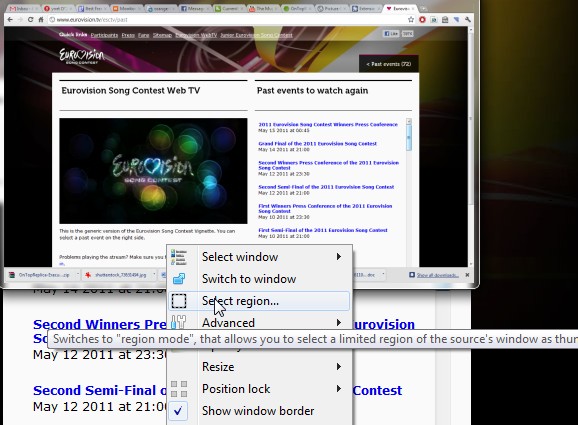
Selecting a window in this manner creates a replicated instance within OnTopReplica. While versatile for various tasks, its utility for video playback is initially limited due to the small size of the replicated window. Therefore, the next step involves defining a specific region. Right-click inside the replica window and choose “Select region…”. You can define this region using your mouse or by manually entering coordinate and size values.
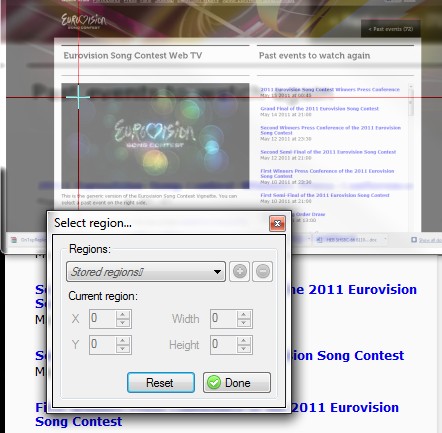
Once the video region is selected, a new window appears displaying only that portion of the original window. This independent window can be freely moved, positioned, and resized as needed.
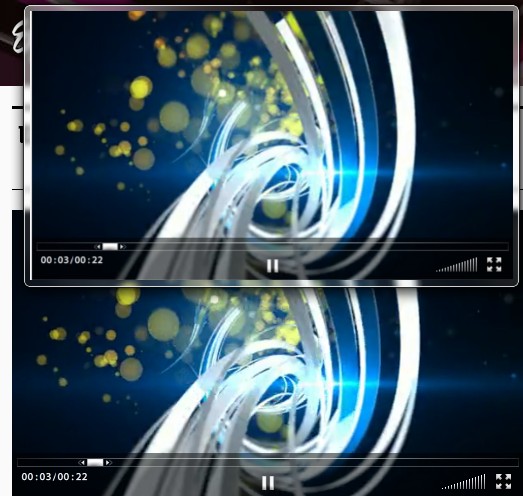
It’s crucial to understand that, unlike Picture-in-Picture (PIP) functionality, this is a true replication. Consequently, the source window must remain open – and not minimized – for the replica to function correctly. Furthermore, switching tabs in your browser will also affect the display within the replica window.
Provided the source browser window remains maximized and on the same tab, you can continue working in other applications while simultaneously viewing your video in the replicated window.
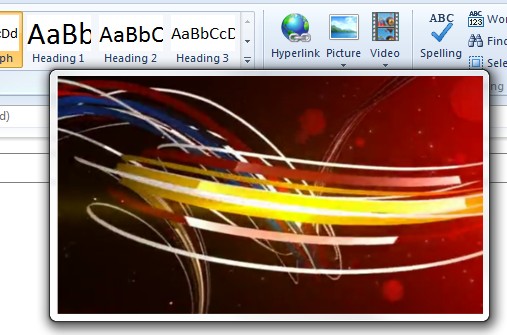
The capabilities of OnTopReplica extend far beyond video replication. It can duplicate any window and offers advanced features like allowing clicks to pass through the replica or forwarding clicks to the original window.
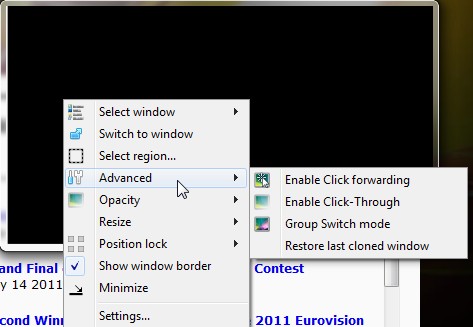
Numerous other options are available for exploration, though they are less directly relevant to video viewing. OnTopReplica requires the .NET Framework 2.0 or a later version to be installed and is compatible with Windows 7 and Vista. Certain features may necessitate that Aero is enabled.
I personally find OnTopReplica to be a valuable tool and have previously used it to watch a lengthy, three-hour online video while multitasking. If minimizing the browser or switching between tabs isn’t a requirement, I wholeheartedly recommend it.
Concluding Thoughts
For those seeking the ability to view videos within a minimized window while simultaneously engaging in tasks like document creation or spreadsheet analysis, OnTopReplica presents a compelling solution. Its adaptability and polished interface are likely to impress, and users will likely discover a multitude of additional applications.
Individuals whose workflow necessitates frequent switching between numerous browser tabs, yet prefer to avoid the complexity of multiple browsers, may find Picture-In-Picture to be ideally suited. This feature functions exceptionally well, delivering precisely its intended purpose – a convenient enhancement for YouTube viewing (and exclusively for YouTube).
Are you aware of any comparable tools or methods? We welcome your insights and recommendations in the comments section below.